User settings
Script User Settings
Most scripts are designed to be configurable by the user. These configurable options can include things like group names, custom messages, and other parameters.
Note: The user’s bot name is not a setting. The user selects which bot to use when purchasing your script.
Configuring Settings
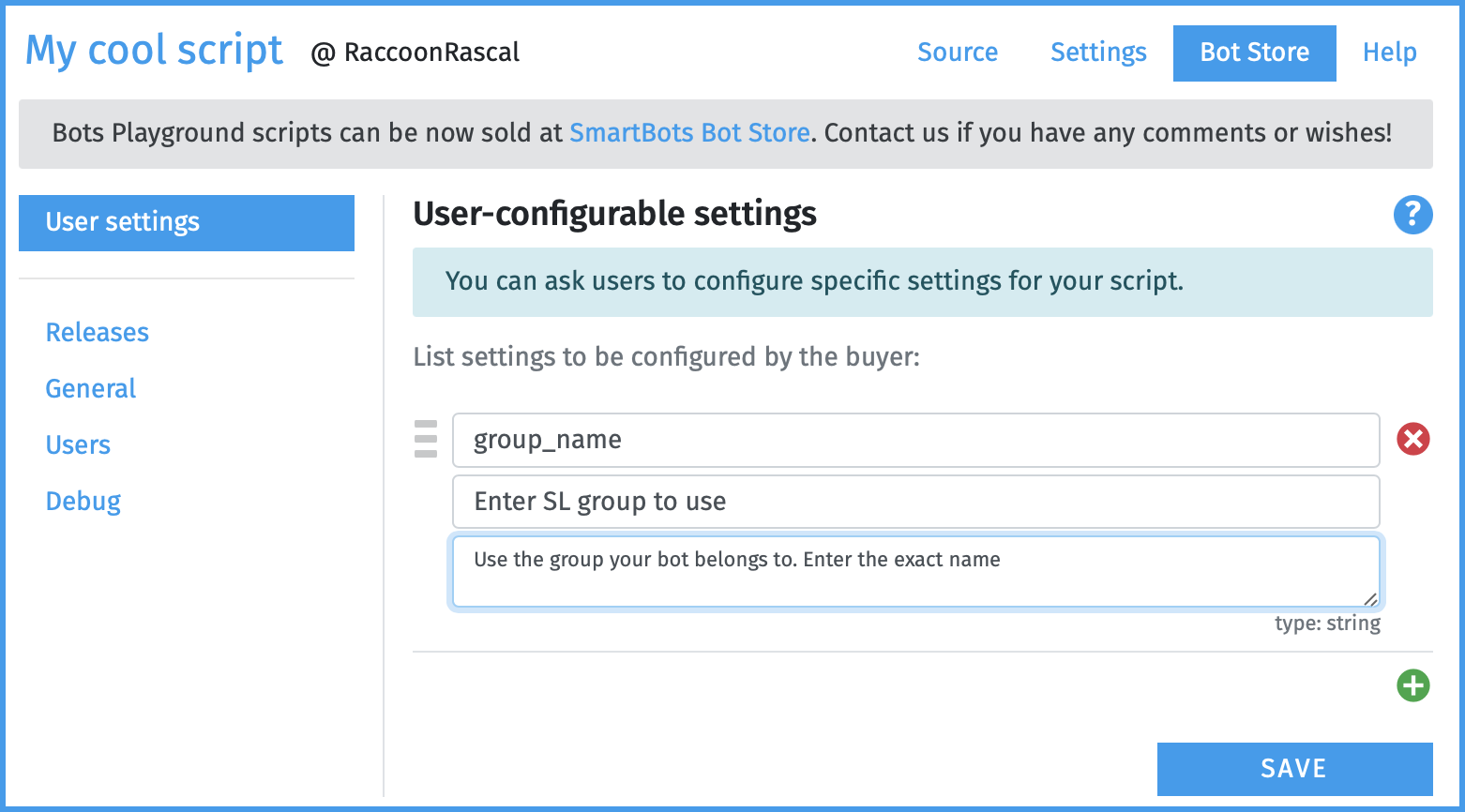
When defining user settings, you specify three values:
Variable name — how your script references the setting.
Friendly name — how the setting appears to the user.
Optional hint — a short description to help the user.
All settings are stored as string values. If you need a number or UUID, you should convert it appropriately within your script.
Accessing User Settings from Script
User settings can be accessed via the global userSettings object:
console.log("Using group: " + userSettings.group_name);Example: Setting Defaults
An easy way to define default values is by using Object.assign().
// Define the default settings here.
const defaultSettings = {
  greetingMessage: "Hello, welcome!",
  repeatCount: 2,
  enableLogging: false
};

// Merge defaults with any values provided by the user.
const settings = Object.assign({}, defaultSettings, userSettings);

// Access the settings.
console.log(settings.greetingMessage);
Specifying Settings While Developing Scripts
While developing your script, you can specify custom test values for user settings on the Settings tab:
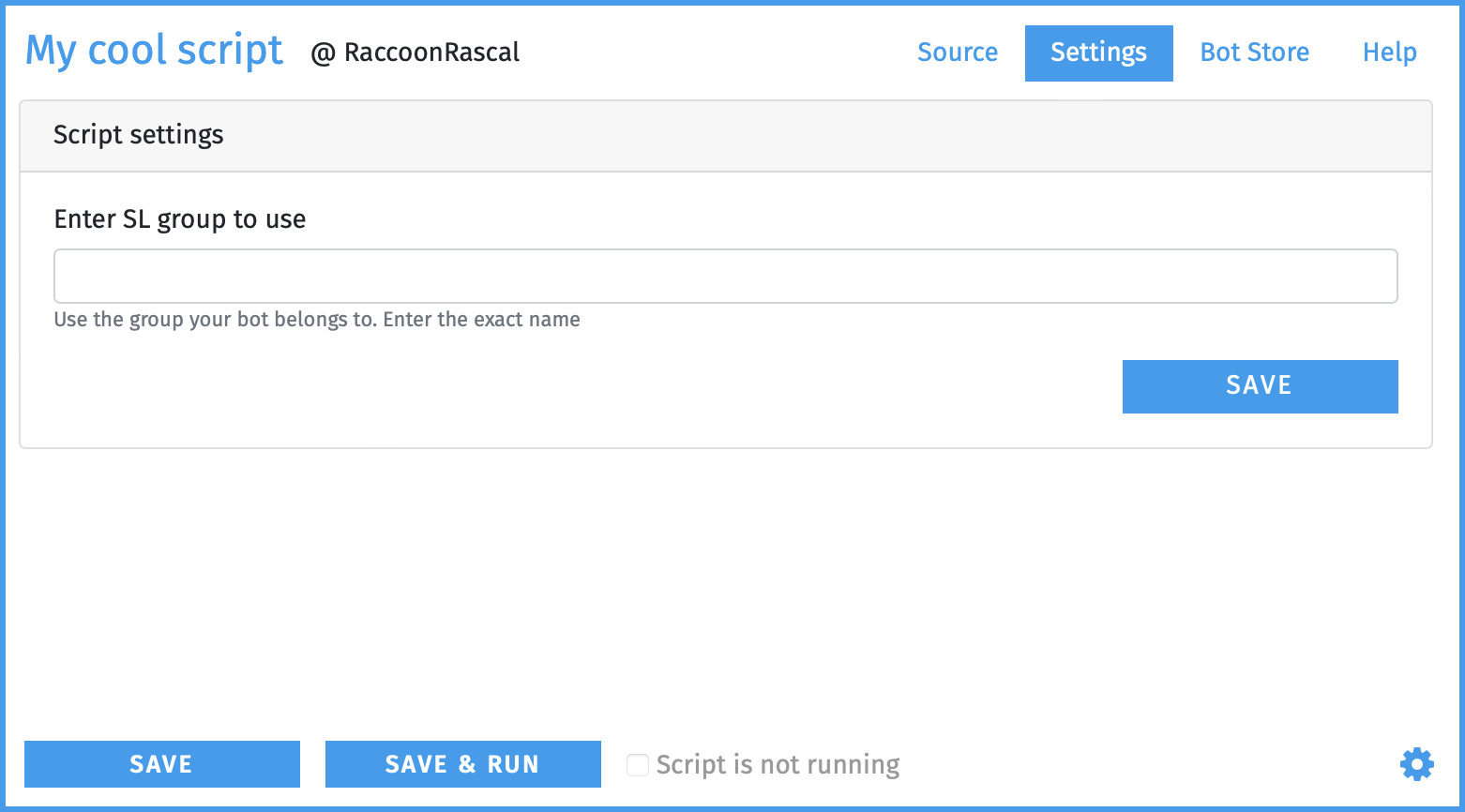
New settings will automatically appear here after you add them on the Bot Store → User Settings screen.
Asking the User for Settings
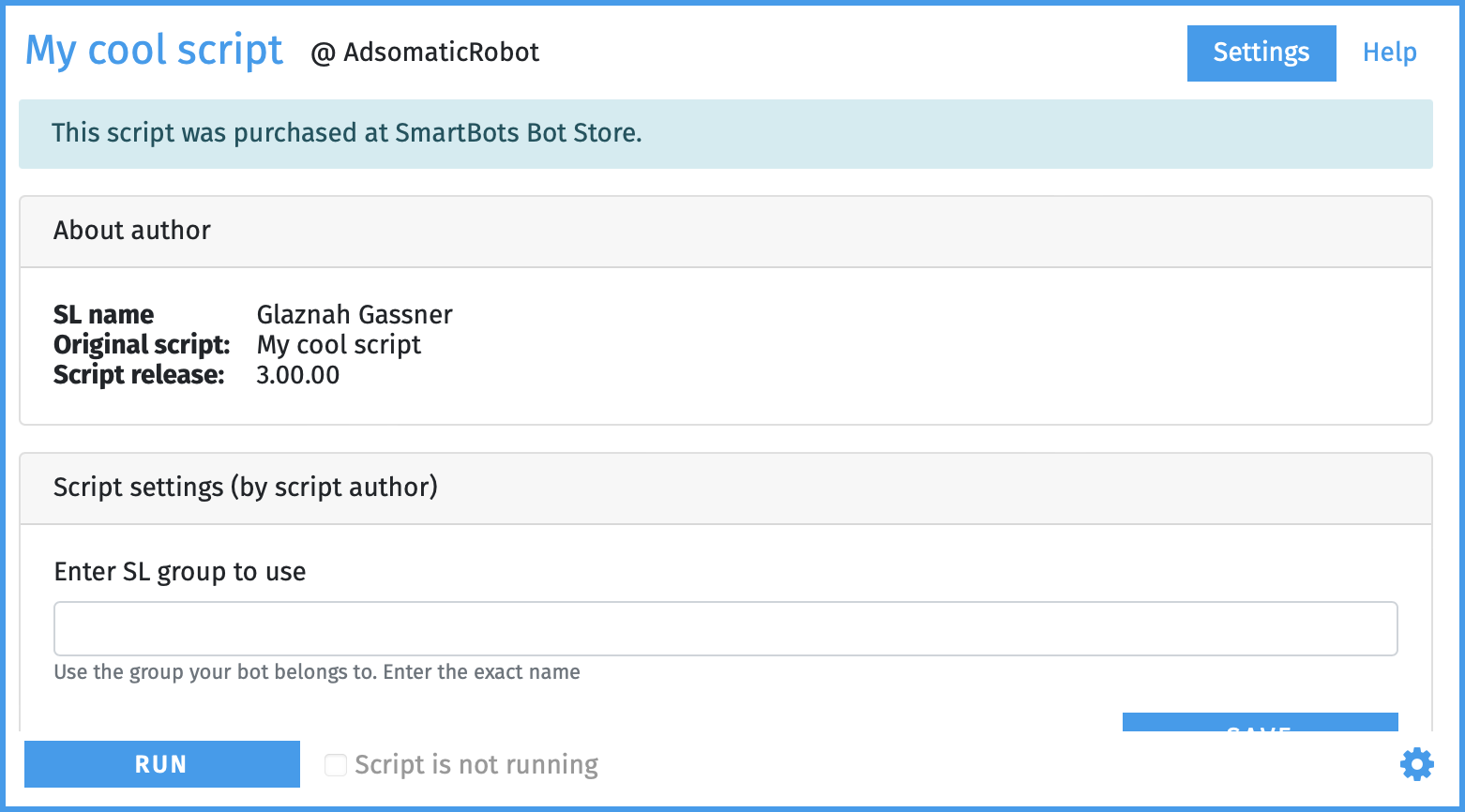
After purchasing the script, users see a configuration panel for their settings:
Settings and Releases
When you publish a new release, the list of settings is saved with that release. This means future changes to user settings won’t affect existing script versions:
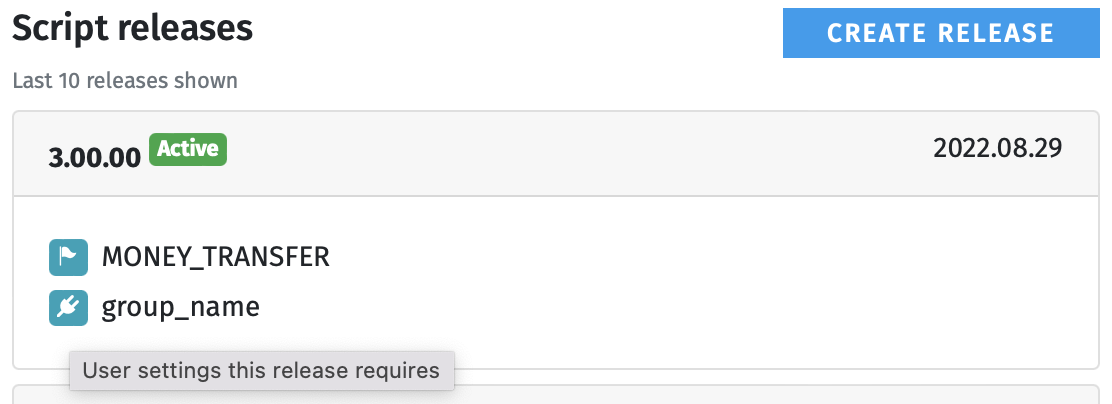
You can safely rename, add, or remove settings when updating your script — previously purchased versions will continue to function normally.